Overview· 02
Install & requirements
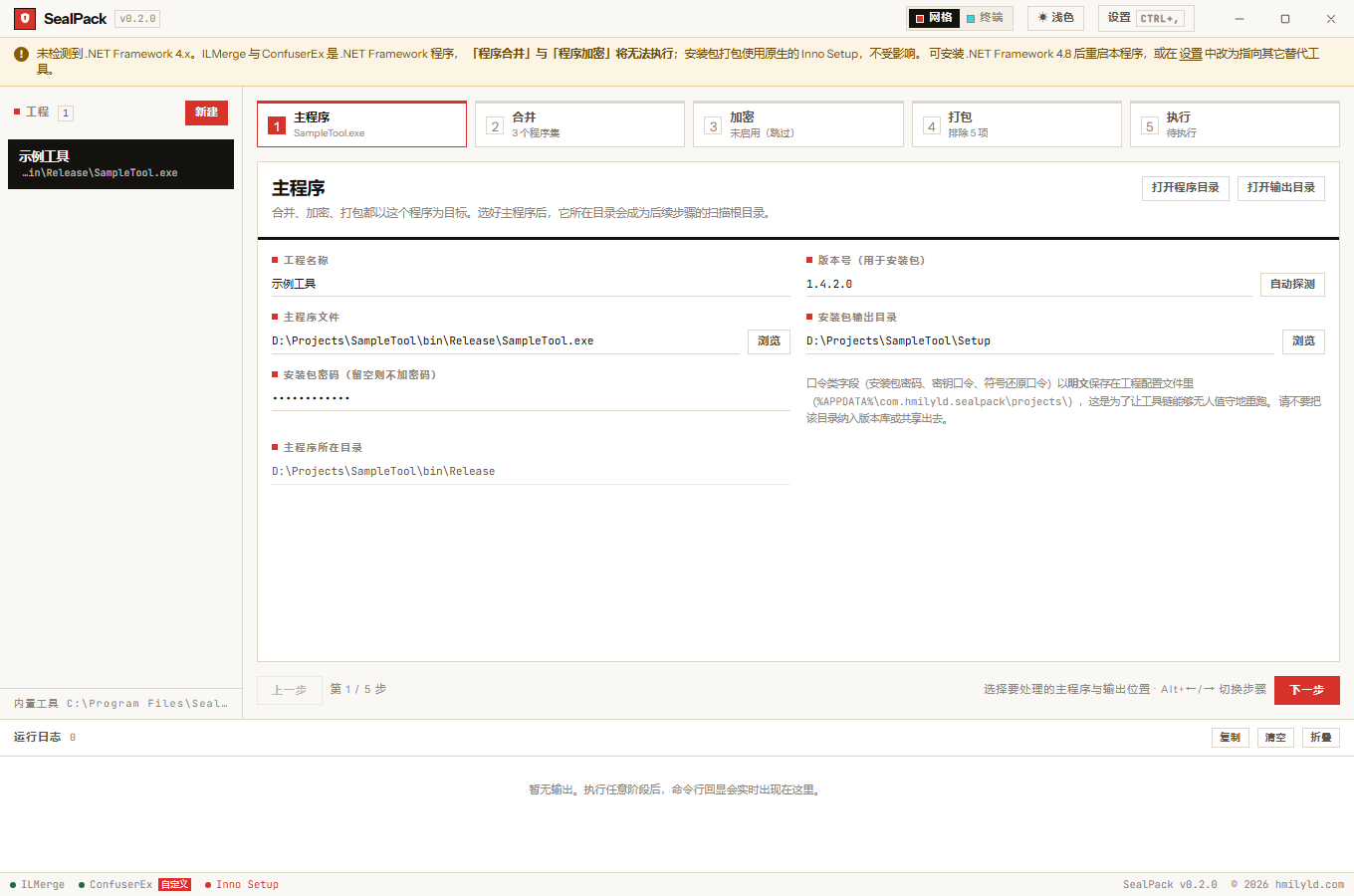
The installer lives on GitHub Releases and installs per-user, no admin rights needed. First launch is about filling in the three external tools.
Install
The installer is on Releases. It is an NSIS package with
installMode: currentUser — it installs into your user profile, never asks for administrator rights,
and writes nothing to Program Files.
The version string comes from tauri.conf.json; the git tag only triggers the build. That means
“the release says v0.2.0 but installs 0.1.0” is caught by a check in the release workflow, described in
development & testing.
System requirements
| Need | Version | What happens without it |
|---|---|---|
| Windows | 10 1809+ / 11 | It will not install. Window materials (Mica Alt) need Windows 11 |
| .NET Framework | 4.8+ | A banner appears and the merge and obfuscate stages become unavailable |
| WebView2 runtime | — | Ships with Windows 11; installed on demand on Windows 10 |
Packaging is unaffected by a missing .NET — Inno Setup is a native program. So “I only want to build an installer” works on a bare machine.
The three external tools
SealPack bundles two of them and never ships Inno Setup. Tool resolution order is always:
- the path in settings (set by hand in the settings panel),
- the bundled copy under
resources/tools/, - the user download directory
%APPDATA%\com.hmilyld.sealpack\tools\.
The third level is mandatory: when the app is installed under Program Files the bundled directory is
read-only, so an automatically downloaded tool can only land in the user profile. Without it you get
“download succeeded, but the UI still says not found”.
If the toolchain is missing on first run, open settings (Ctrl + ,) and press download:
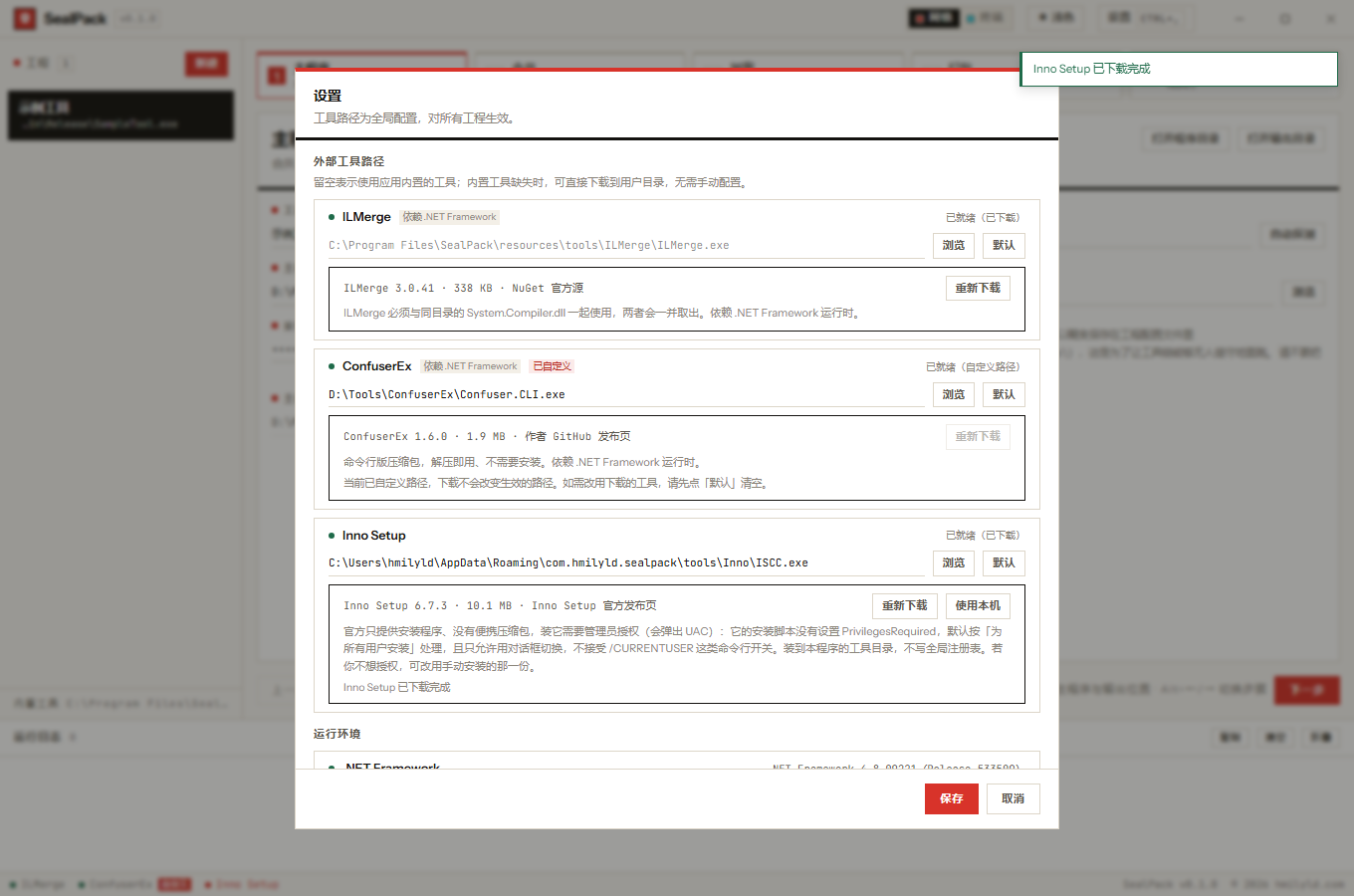
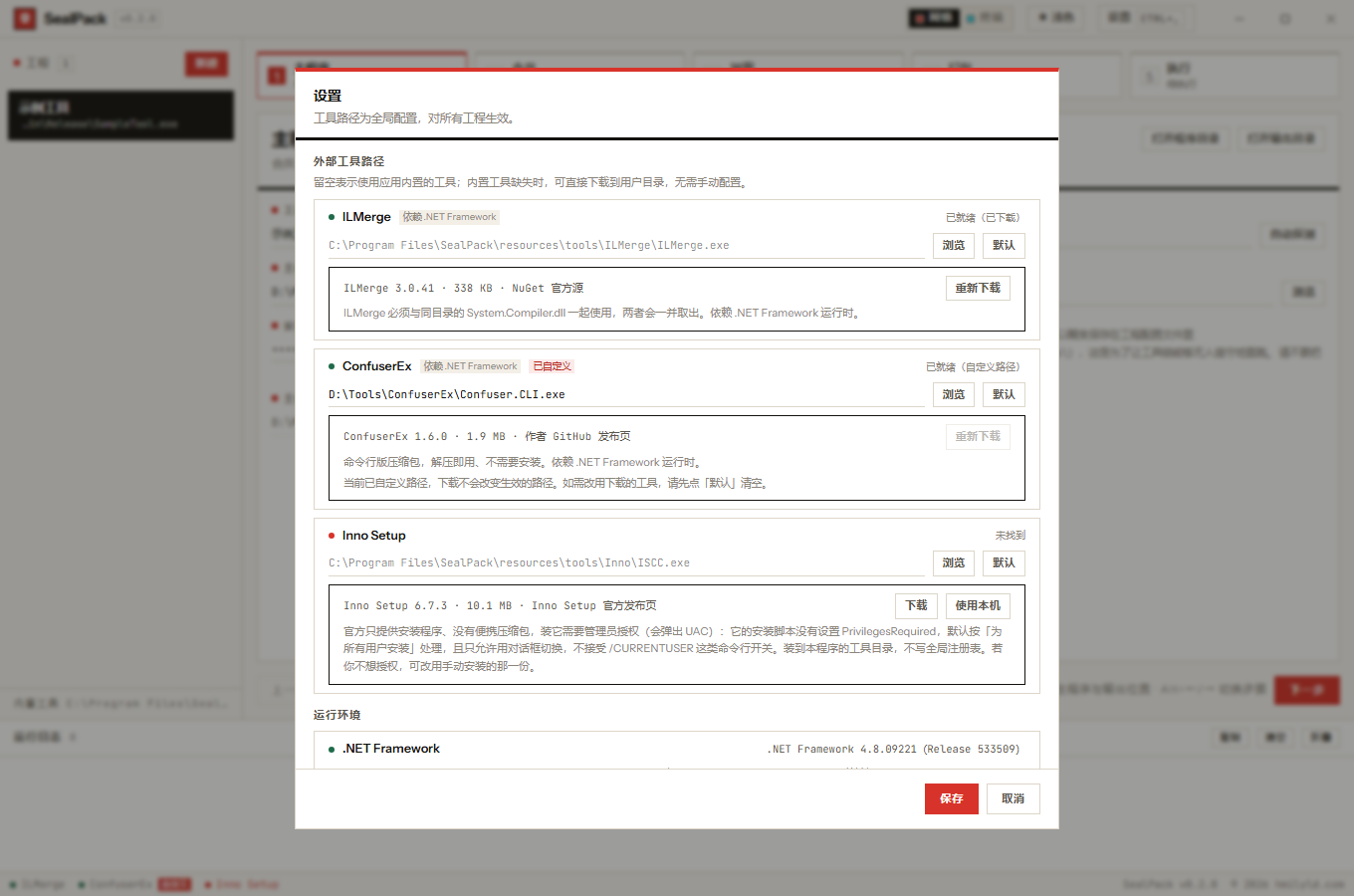
- ILMerge comes from the NuGet feed. The package is a
.nupkg(a zip in disguise) and the real files live undertools/net452/; - ConfuserEx comes from the author’s GitHub releases as a flat zip;
- Inno Setup has no portable build, so it is installed silently. Its setup script installs for all
users and rejects
/CURRENTUSER, which means one UAC prompt. The app first probes for an existing local installation and offers “use the local copy” — saving both a 10 MB download and an elevation.
URLs, byte counts and SHA-256 digests for all three are pinned in download.rs (SOURCES). A mismatch
fails the install outright; nothing of unknown provenance is written into the tool directory. See
data & security.
The Chinese language pack
The installer also carries a Simplified Chinese translation for Inno Setup
(resources/isl/ChineseSimplified.isl). The reason is that Inno’s official distribution does not
include Chinese — its Languages\ directory ships 29 languages and Simplified Chinese is a
user-contributed translation that has to be downloaded separately.
So the generated script cannot say compiler:Languages\ChineseSimplified.isl; that fails with
Couldn't open include file on any standard installation. SealPack copies its own copy next to the
temporary script and references it by relative path (ISCC resolves relative to the script’s
directory, so it does not matter where Inno itself lives).
Upgrades and uninstalling
The installer is produced by Inno, and whether a rebuild upgrades or installs side by side depends on the AppId. That has a page of its own because it is the easiest thing to get wrong and the hardest to notice: app identity & upgrades.
Uninstall through Windows “Installed apps”, or run uninstall.exe in the install directory. The portable
mode (packagingMode=portable) writes no registry keys and creates no uninstaller — deleting the folder
is the uninstall.