Getting started· 05
Shortcuts, menus & window
The global shortcut table intercepts without swallowing events, the context menu is hand-drawn, and eight hit zones take over edge resizing on a frameless window.
Shortcuts
| Shortcut | Action |
|---|---|
| Ctrl + , | Open settings |
| Ctrl + W | Close the window |
| Alt + ← / → | Previous / next wizard step |
| Esc | Close the context menu or dialog |
| ↑ ↓ Home End | Move focus in the tree and in menus |
| → ← | Expand / collapse, step into / out of a folder |
| Space / Enter | Toggle the tree checkbox |
Inside a dialog, Tab cycles within the panel and Enter triggers the primary action. Esc and clicking the backdrop both end the dialog properly; neither leaves the caller hanging.
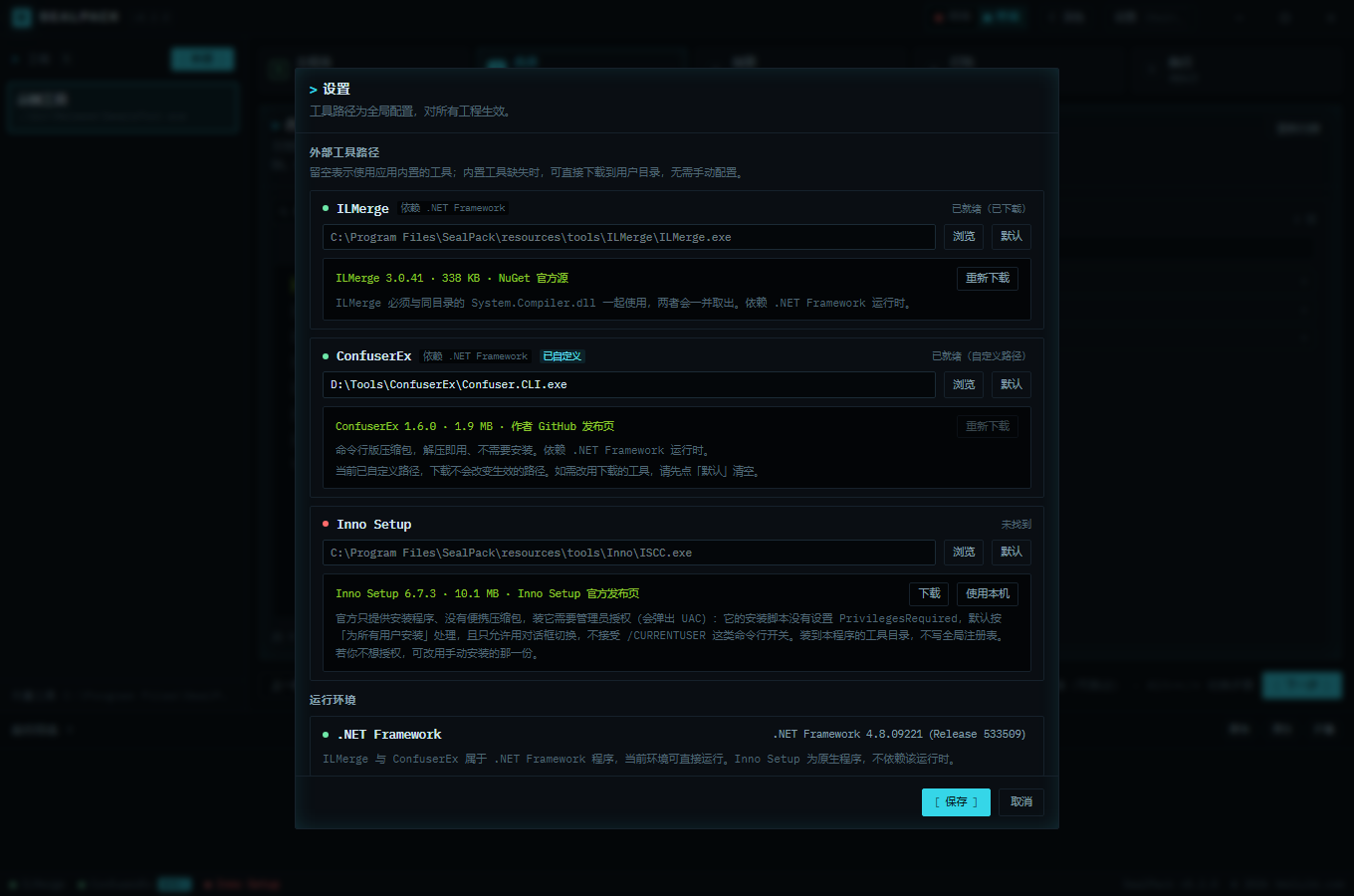
Context menu
A desktop program has a context menu on right click. SealPack replaces WebView2’s native menu with a hand-drawn one that follows the current skin, keeps full keyboard semantics (↑ ↓ cycle, Home / End jump, Enter activates, Esc closes and returns focus), and nudges itself back inside the viewport near edges.
| Where | Items |
|---|---|
| Project row | Open executable folder / open output folder / delete project |
| File tree | Check current results / select all / select none / clear selection and filters / rescan |
| Inputs and script area | Cut / copy / paste / select all |
| Run log | Copy all output / clear log |
| Theme button | Window material toggle (Mica Alt) |
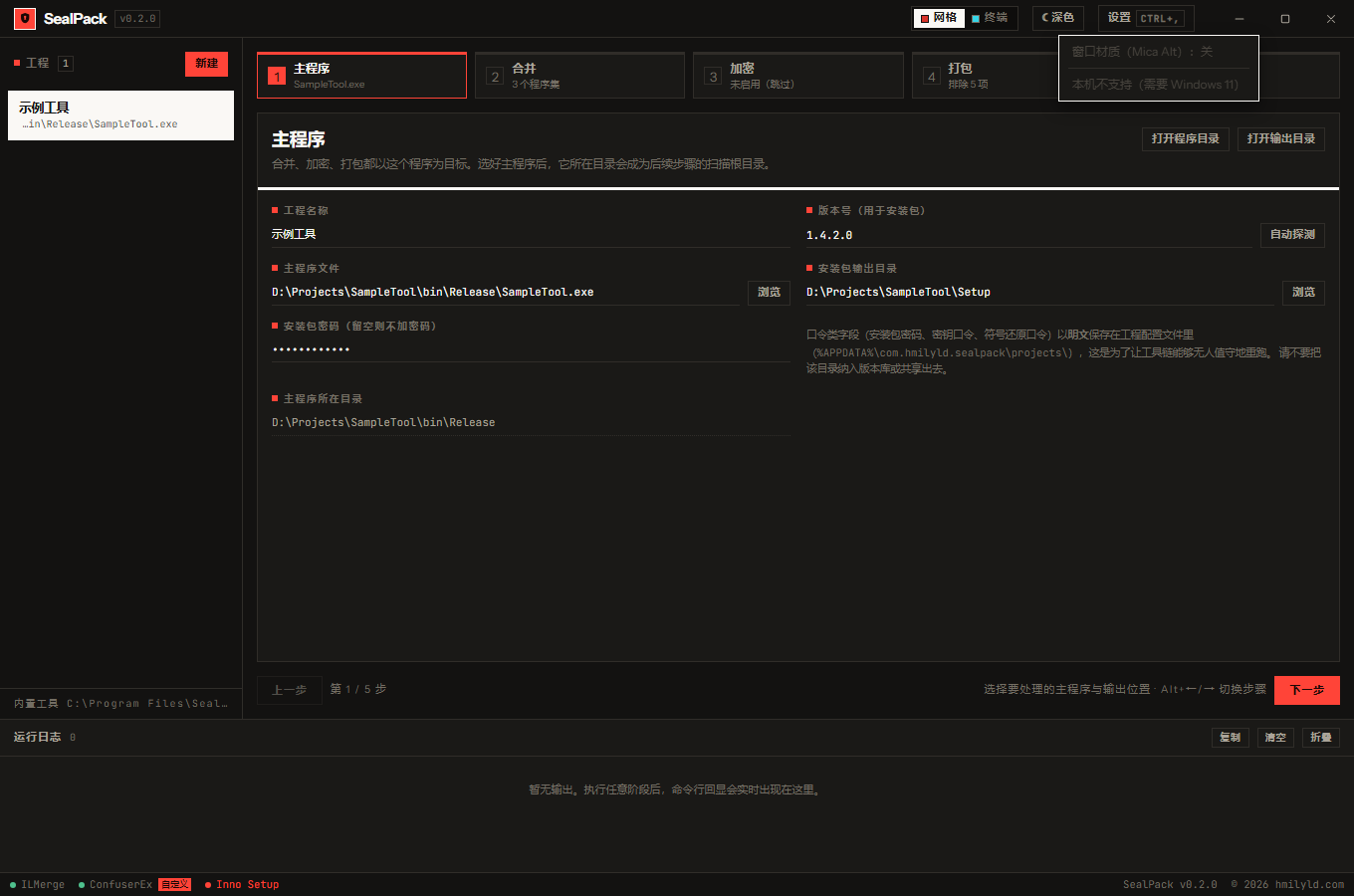
The window
- Frameless, hand-drawn title bar: minimise / maximise / close are drawn by the frontend, the bar drags the window, double-click toggles maximise. A frameless window loses Windows’ own edge resizing, so eight transparent hit zones take over the four edges and four corners.
- Window materials: on Windows 11 with Mica Alt enabled, the title bar, sidebar and status bar go
translucent while the content area stays opaque. Any of three gates failing drops back to a solid
colour:
set_effects()fails (Windows 10), the user disabled it (right-click the theme button), or the system has “reduce transparency” on. A▾on the theme button means the menu exists. - Window size and maximised state are remembered, position is not — the window always opens centred, so a monitor you unplugged last time cannot hide it.
- The window is created with
visible: false; the frontend shows it after “write skin → two rAF frames →show()”, so startup never flashes a white background. Rust has a 1.5 s fallback so a script error cannot leave the window invisible.
Two designs, three light/dark modes
One click on the switcher in the title bar changes the design live. Both designs share the same DOM; the difference is 100% CSS.
| Design | Type | Accent | Default theme in manual mode |
|---|---|---|---|
| Swiss grid | Instrument Sans + JetBrains Mono | warm paper #faf8f5 + vermilion #d8332a |
light |
| Terminal | Chakra Petch + IBM Plex Mono | near-black #05070a + cyan #35d6e8 / acid green #a3e635 |
dark |
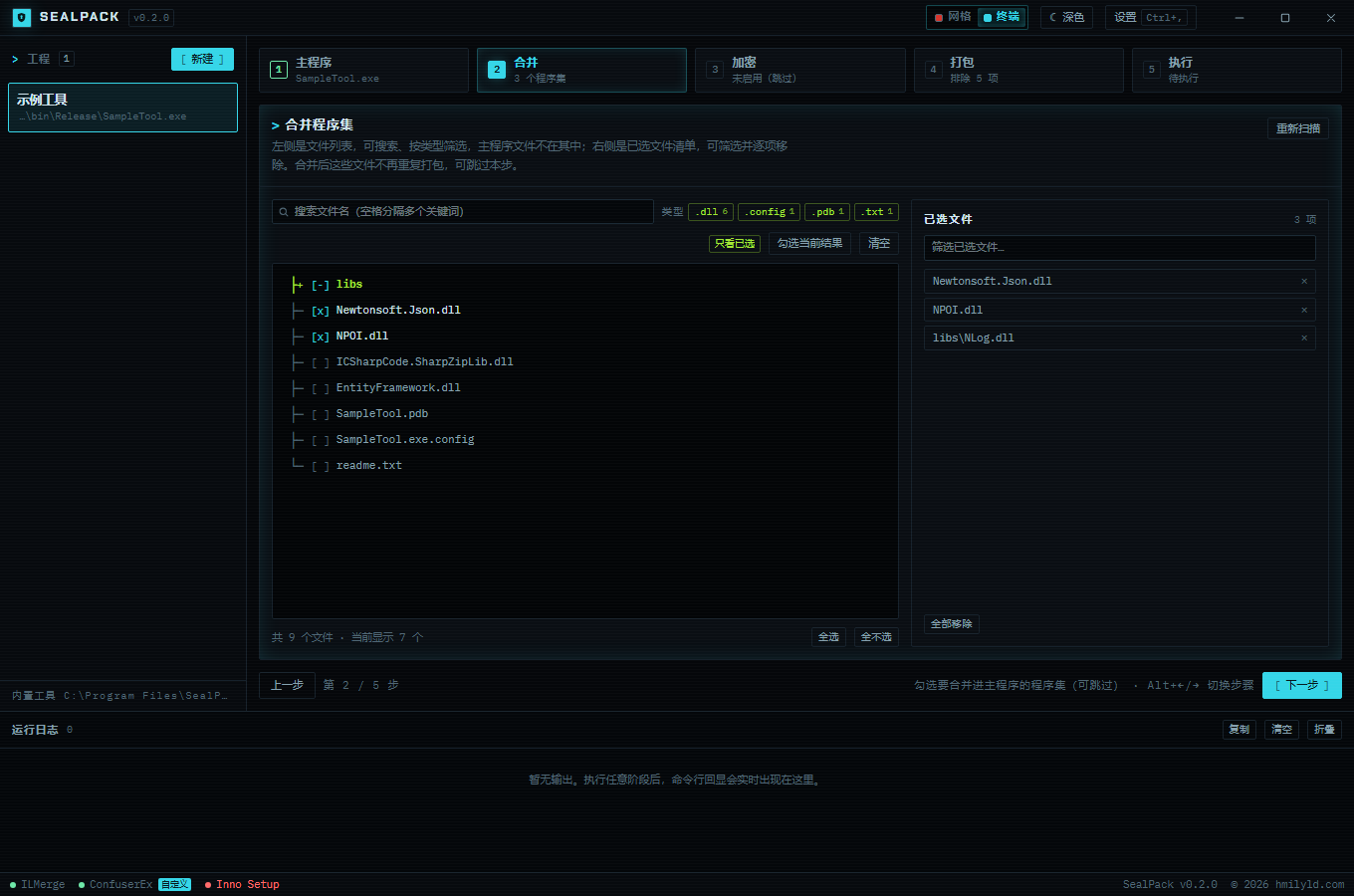
Light/dark has three modes, cycled by the theme button:
auto (follow system) → dark → light → auto.
The default is auto — a local program should respect the Windows app mode instead of deciding for
itself. The system value comes from prefers-color-scheme (WebView2 maps it to the Windows app mode), and
the UI follows live without a restart. Once you choose manually the system no longer overrides it, and
each design remembers its own light/dark setting, restored when you switch back.